


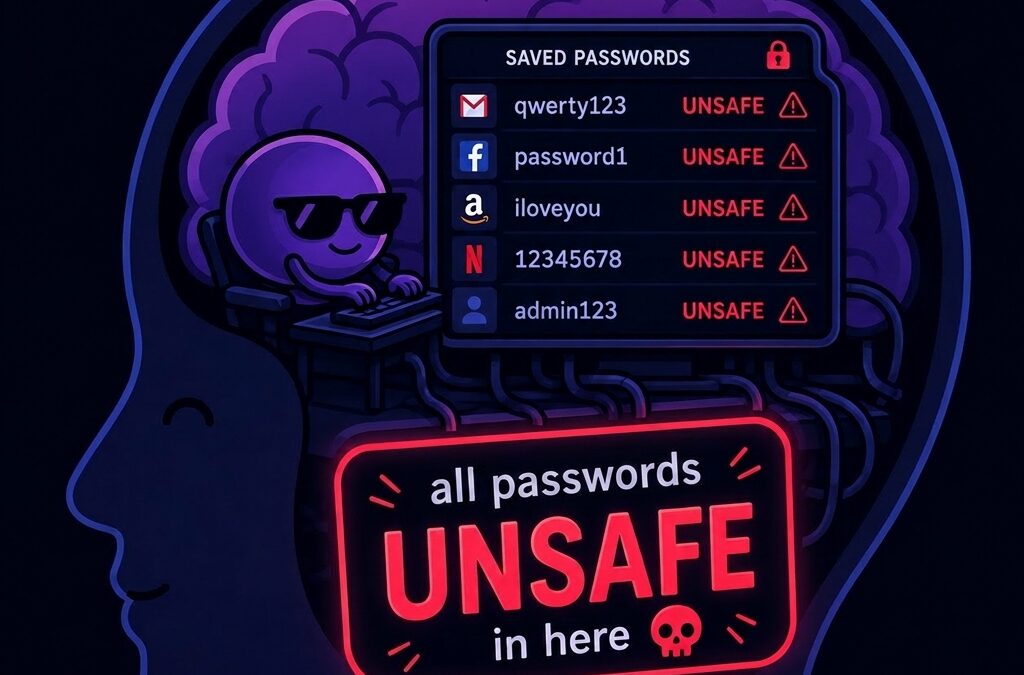
We need to talk about the built-in “password managers” in Chromium-based browsers like Google Chrome, Brave, and Microsoft Edge. They are incredibly convenient, syncing effortlessly across your devices and autofilling your credentials with a single click.
But as cybersecurity professionals, we need to stop calling them password managers.
Why? Because the way they handle your highly sensitive data under the hood leaves a massive, glaring blind spot. If an attacker gains user-level access to your machine, those saved passwords are effectively sitting right out in the open. Here is exactly why you should reconsider trusting your browser with your credentials.
The Clear Text Preload Problem
To understand the vulnerability, we have to look at what happens the moment you launch a Chromium-based browser.
When the browser starts, it doesn’t just sit idly waiting for you to visit a login page. Instead, it accesses its local encrypted database, decrypts the stored passwords, and preloads them into the process memory in clear text.
This means that any attacker or any piece of malware that has user-level execution rights on the victim’s machine can simply inspect the browser’s process memory and scrape those plaintext credentials. There is no advanced decryption or brute-forcing required; the browser has already done the heavy lifting of decrypting the data and leaving it in RAM.
The UAC Illusion
At this point, you might be thinking: “Wait a minute, whenever I try to view my passwords in the browser settings, Windows prompts me for my PIN or password. Doesn’t that protect me?”
This is a very common misconception. That prompt you see is User Account Control (UAC). To the average user, it feels like a locked door. But in reality, Microsoft does not consider UAC a security boundary. UAC is merely a “protection feature” or an administrative speedbump. It is designed to prevent accidental system changes, not to stop a dedicated attacker who already has code execution on your machine. This fundamental design philosophy is precisely why there are dozens of known UAC bypasses in the wild, and why Microsoft often does not rush to patch them as critical security flaws.
Because the passwords are already sitting in the active process memory, an attacker doesn’t need to trigger that UAC prompt to get what they want. They just need to read the memory.
Microsoft Edge: A Special Offender
While this architectural quirk applies to Chromium browsers in general, it is especially troubling when it comes to Microsoft Edge.
Based on our observations (and corroborated by other researchers in the field), Edge appears to be incredibly aggressive with this preloading behaviour. Upon start-up, Edge tends to preload the vast majority if not all of the passwords stored in its vault directly into memory. This creates a massive, concentrated target for memory-scraping malware right from the moment the user logs into their computer and opens their browser.
Proving the Point: Crymium by TwelveSec
At TwelveSec, we don’t just talk about theory, we test it!
To demonstrate exactly how severe this issue is, we developed a lightweight tool called Crymium. The premise is simple: it checks if a Chromium-based browser is currently running on a user’s machine. If the process is active, Crymium hooks in and retrieves the usernames and passwords directly from the process memory.
No administrative privileges required. No UAC bypass necessary. Just straightforward memory extraction of clear-text credentials.
Want to see it in action? You can check out Crymium on our GitHub repository here: https://github.com/twelvesec/Crymium
The Takeaway
Browser-based credential stores are built for convenience, not fortress-level security. If a malicious actor gets onto your machine while your browser is running, your saved passwords are theirs for the taking.
If you truly want to secure your credentials, you need to use a dedicated, standalone password manager that keeps your vault encrypted in memory and only decrypts specific entries exactly when they are needed.
References & Further Reading
If you want to dive deeper into Microsoft’s definition of security boundaries or read more about the Chromium and Edge plaintext discoveries, check out the resources below:
-
Windows Security Servicing Criteria (Microsoft MSRC):
https://www.microsoft.com/en-us/msrc/windows-security-servicing-criteria -
Security Boundaries – Win32 Apps (Microsoft Learn):
https://learn.microsoft.com/en-us/windows/win32/cossdk/security-boundaries -
Microsoft Edge Stores Passwords in Cleartext (Cyber Security News): https://cybersecuritynews.com/microsoft-edge-passwords-cleartext/